 DriftEngine
Getting started
Hello world
A complete first program. A renderer on a canvas, light, two meshes, a camera, a loop that turns a cube on a fixed clock, and a rule in DriftScript.
npm install @driftengine/core @driftengine/script
The smallest DriftEngine program that is still a game draws a lit cube on a ground plane and turns it on a fixed clock. It's about a hundred lines, and every later page builds on the same pieces: a renderer, an environment, meshes, a scene, a loop, and a rule in DriftScript that the loop asks how fast to turn.
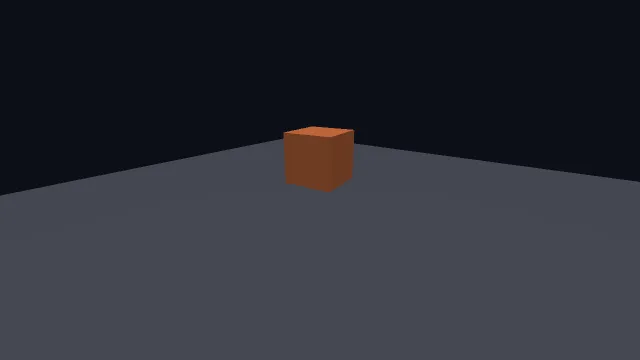
Starts examples/starter in this page, on WebGPU where your browser has it.
The program is examples/starter/main.ts and one rule beside it in examples/starter/spin.drs, and
it is the folder to copy when you begin a project. This page walks through it from the top.
The imports
The engine comes from its packages' top level: @driftengine/core for everything drawn and
simulated, @driftengine/script for binding scripts to it. loadModule and patchModule are
DriftScript's own, and the .drs file is imported like any other module.
import {
  Camera,
  MeshBuilder,
  SceneNode,
  createEnvironment,
  createRenderer,
  startLoop,
} from '@driftengine/core';
import { bindModule } from '@driftengine/script';
import { loadModule, patchModule } from 'driftscript';
import * as spinScript from './spin.drs';A renderer on the canvas
const canvas = document.querySelector<HTMLCanvasElement>('#stage');
if (canvas === null) throw new Error('the page must carry <canvas id="stage">');

/*
 * Asynchronous because it has to be: asking for a WebGPU adapter returns a promise, and there
 * is no synchronous way to learn whether a usable device exists. The fall back to WebGL2 is
 * automatic and silent, so `reason` is the only thing that says why. Print it: the first
 * question asked about any picture is what drew it.
 */
const { renderer, backend, reason } = await createRenderer(canvas, {
  maxDevicePixelRatio: 1.75,
});

const readout = document.querySelector('#backend');
if (readout !== null) readout.textContent = `${backend}: ${reason}`;

renderer.resize();
addEventListener('resize', () => renderer.resize());createRenderer is asynchronous because asking the browser for a WebGPU adapter is. It tries WebGPU
first and falls back to WebGL2 on its own, so a game never branches on the backend. What it hands
back says what happened: renderer is the object you draw with, backend is 'webgpu' or
'webgl2', and reason explains the choice in words.
The second argument is the render quality profile. maxDevicePixelRatio caps how many pixels the
drawing buffer gets per CSS pixel, which is the single biggest cost on a phone with a dense screen.
Quality options are decided when the renderer is built, because most of them size GPU memory, and
changing one means building a new renderer.
renderer.resize() reads the canvas's CSS size and sets the drawing buffer to match. Call it once
at the start and again whenever the window changes size.
Light and air
/** Light, air and ground bounce. Chosen once, because these are allocation-sized decisions. */
const ENV = createEnvironment({
  directionalDir: [0.4, 0.7, 0.35],
  directionalColor: [1, 0.96, 0.88],
  ambient: [0.2, 0.22, 0.28],
  ambientGround: [0.08, 0.08, 0.1],
  emissiveGain: 0,
  nightFactor: 0,
  fogColor: [0.16, 0.18, 0.24],
  fogDensity: 0.004,
  fogHeightFalloff: 0.03,
  fogBaseY: 0,
});An Environment is the lighting and atmosphere for a frame: a directional light that points
toward the sun, an ambient fill from above and a separate one from the ground, and fog that
thickens with distance and thins with height. createEnvironment fills every field you leave out
with a value that means nothing special, so you only write the ones you care about.
nightFactor is worth knowing about early, because its name misleads. It is the switch for emissive
light: at 0 nothing in the world glows, however bright its emissive value. It has nothing to do with
the clock.
Meshes
/*
 * Colour is vertex data here, which is what lets a whole world be flat-shaded draw calls.
 * `addBox` takes a centre and *half* extents, so this ground is 24 units across and the cube
 * is two units on a side.
 */
const shapes = new MeshBuilder();
shapes.addBox([0, 1, 0], [1, 1, 1], [0.85, 0.45, 0.25]);
const cube = renderer.createMesh(shapes.build());

const slab = new MeshBuilder();
slab.addBox([0, -0.25, 0], [12, 0.25, 12], [0.3, 0.32, 0.36]);
const ground = renderer.createMesh(slab.build());A MeshBuilder collects shapes into one mesh. addBox takes a centre, half extents and a colour,
so the ground here is 24 metres across. Colour is per vertex, which is why neither mesh needs a
texture. The builder also has spheres, capsules, cylinders, tubes, quads and more, and every shape
you add to one builder becomes part of the same mesh, drawn in one call.
renderer.createMesh uploads the result to the GPU and returns a handle. Do this once, at load,
never in the frame.
The scene
const spinner = new SceneNode();
spinner.setPosition(0, 1, 0);
const stillness = new SceneNode();
stillness.updateWorld();

const camera = new Camera();
camera.position[0] = 6;
camera.position[1] = 4.5;
camera.position[2] = 8;
camera.lookAt(0, 1, 0);A SceneNode holds a position, a rotation and a scale, and computes a worldMatrix from them when
you call updateWorld(). Nodes can be parented, and a child's world matrix includes its parent's.
The ground never moves, so its node is updated once.
The Camera is a perspective camera. Set its position and call lookAt, or set yaw and pitch
directly: yaw 0 looks toward negative Z, and positive yaw turns right.
A rule in DriftScript
// Radians a second: a steady turn that quickens and eases every few seconds.
fn spinRate(time: f32) -> f32 {
    return 0.8 + 0.4 * math.sin(time * 0.5)
}DriftScript is the engine's scripting language, and a game's rules belong in it: the numbers and decisions you tune by watching the game run. This one says how fast the cube turns, and it can answer only that. It cannot reach the cube, the renderer or the page; the page asks it, and acts on the answer.
/*
 * How fast the cube turns is a rule, and rules live in DriftScript: `spin.drs`. The bundler compiles
 * the file, `loadModule` makes a module of it, and `bindModule` gives it the engine capabilities it
 * imports. Saving the file while the page is open replaces its function in place.
 */
const spinModule = loadModule(spinScript as Record<string, unknown>);
const bound = bindModule(spinModule, {});
if (!bound.bound) throw new Error(bound.reason);
const rules = spinModule.exports as unknown as { spinRate(time: number): number };

if (import.meta.hot) {
  import.meta.hot.accept('./spin.drs', (next) => {
    if (next !== undefined) patchModule(spinModule, next as Record<string, unknown>);
  });
}The bundler compiles spin.drs when the page imports it. loadModule turns the result into a
module, bindModule hands it whatever engine capabilities it imports (here none, since std/math
is the language's own), and the rule is then an ordinary function. The import.meta.hot block is
what makes a script worth having: save spin.drs with the page open, and the cube changes speed in
the same frame, with nothing reloaded and nothing reset.
To build this outside the engine's repository, a project needs the DriftScript plugin in its Vite config, which Installation shows. DriftScript in a game is the section on what goes in a script and what stays in TypeScript.
The loop
/*
 * Two angles, because that is what `alpha` is for. The simulation advances in fixed steps and
 * the display does not, so a frame almost never lands on a step boundary: drawing `spin`
 * directly judders at any refresh rate that is not a multiple of the step. Interpolating
 * between the last two states is the whole reason the loop hands `alpha` over.
 */
let spin = 0;
let previousSpin = 0;
let time = 0;

startLoop({
  simulate(dt) {
    previousSpin = spin;
    time += dt;
    spin += dt * rules.spinRate(time);
  },
  render(alpha) {
    spinner.setRotationAxisAngle(0, 1, 0, previousSpin + (spin - previousSpin) * alpha);
    spinner.updateWorld();

    camera.updateMatrices(canvas.height > 0 ? canvas.width / canvas.height : 1);

    renderer.beginFrame([0.05, 0.06, 0.09]);
    renderer.bindMeshPass(camera, ENV);
    renderer.drawMesh(ground, stillness.worldMatrix);
    renderer.drawMesh(cube, spinner.worldMatrix);
    renderer.endFrame();
  },
});startLoop calls your simulate at a fixed 60 steps a second, however fast the display refreshes,
and calls render once per displayed frame. Each step adds the script's rate, at the time the
simulation has reached, to the angle. render receives alpha, how far the display has got
between the last simulated step and the next, and the cube's angle is drawn at exactly that point
between its previous and current value. The loop explains why this is the whole
difference between smooth motion and judder.
The simplest frame is four calls: beginFrame with a clear colour, bindMeshPass with the
camera and the environment, any number of drawMesh calls with a mesh and a world matrix, and
endFrame.
Where to go from here
You have a renderer, light, meshes, a camera, a loop and a script, which is everything a game is made of. Next, The loop covers simulation, pause and the step counter, and Moving things covers input.